Physics simulation with Javascript
A React and canvas experiment that turns image pixels into an interactive particle system.
Welcome to the world of physics simulation with Javascript
This whole idea came about from a random YouTube video popping up in my feed. A guy selling a course on HTML/Javascript and canvas elements, he was modifying image pixels with canvas in a particle system.
Full disclosure, I did not watch the whole video so I can not say if the video is good or bad, I did however watch some of it to get the gist of what was happening and how I could replicate this in React.
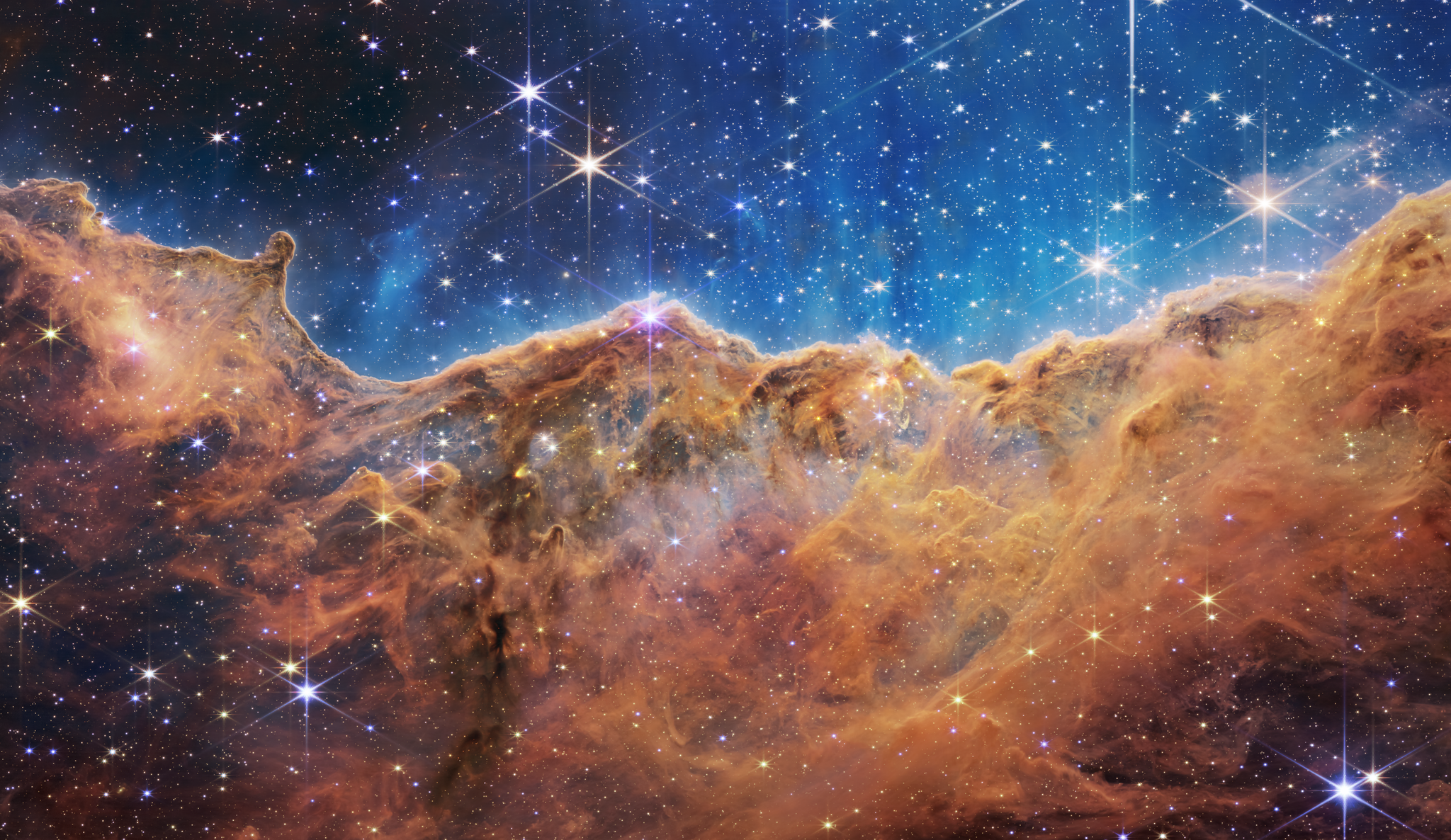
You can view the full code below the result of this experiment.
Final result
Particle controls
Toggles
The code
The component
To render the image as he does in the video poses a couple of issues when working with react. One is the fact that loading the image on first load in canvas didn’t work as expected. The <img /> tag has a onload function you should be able to use. I, however, couldn’t make it work, so I used JavaScript for this.
You do not want to initiate the canvas before the image is loaded. This is especially true when the image you use is hosted on a remote server, such as sanity.
/** * PhysicsImageProps * @param src: url to image * @param particleSystemOptions: (Optional) */interface PhysicsImageProps { src: string particleSystemOptions?: IParticleSystemOptions | null}
export default function PhysicsImage({ src, particleSystemOptions,}: PhysicsImageProps): JSX.Element { let effect: null | Effect = null const imageRef = useRef<HTMLImageElement>(null) const canvasRef = useRef<HTMLCanvasElement>(null)
return ( <div className="flex flex-col items-center justify-center px-0"> <canvas ref={canvasRef} /> <img ref={imageRef} /> </div> )}Loading the image data
To solve this issue I ended up dropping the <img /> tag, this was also done to not have the image in the html of the component, as that requires you to hide the element with css. After all, the image is only being used to calculate pixel colors and values, not actually rendering the image.
/** * PhysicsImageProps * @param src: url to image * @param particleSystemOptions: (Optional) */interface PhysicsImageProps { src: string particleSystemOptions?: IParticleSystemOptions | null}
export default function PhysicsImage({ src, particleSystemOptions,}: PhysicsImageProps): JSX.Element { let effect: null | Effect = null const canvasRef = useRef<HTMLCanvasElement>(null)
return ( <div className="flex flex-col items-center justify-center px-0"> <canvas ref={canvasRef} /> </div> )}To get the correct image data the image was built with a useEffect and the Image api. Building it with the API has the added benefit of removing the need for another useRef hook.
/** * PhysicsImageProps * @param src: url to image * @param particleSystemOptions: (Optional) */interface PhysicsImageProps { src: string particleSystemOptions?: IParticleSystemOptions | null}
export default function PhysicsImage({ src, particleSystemOptions,}: PhysicsImageProps): JSX.Element { const [loaded, setLoaded] = useState(false) const [imageSrc, setImageSrc] = useState<HTMLImageElement | null>(null) const canvasRef = useRef<HTMLCanvasElement>(null)
useEffect(() => { let image = new Image() image.src = src image.crossOrigin = 'anonymous' image.onload = function () { setImageSrc(image) setLoaded(true) } }, [])
return ( <div className="flex flex-col items-center justify-center px-0"> <canvas ref={canvasRef} /> </div> )}/** * PhysicsImageProps * @param src: url to image * @param particleSystemOptions: (Optional) */interface PhysicsImageProps { src: string particleSystemOptions?: IParticleSystemOptions | null}
export default function PhysicsImage({ src, particleSystemOptions,}: PhysicsImageProps): JSX.Element { const [loaded, setLoaded] = useState(false) const [imageSrc, setImageSrc] = useState<HTMLImageElement | null>(null) const canvasRef = useRef<HTMLCanvasElement>(null)
useEffect(() => { let image = new Image() image.src = src image.crossOrigin = 'anonymous' image.onload = function () { setImageSrc(image) setLoaded(true) } }, [])
return ( <div className="flex flex-col items-center justify-center px-0"> <canvas ref={canvasRef} /> </div> )}From the code you can see that the loaded state is set to true as soon as the image is loaded, there is also an extra step of setting the image in a state variable. This could probably be omitted, but it works for now. When working locally with image from sanity, the image.crossOrigin has to be set to ‘anonymous’, or you will get a insecure action error from the canvas API.
/** * PhysicsImageProps * @param src: url to image * @param particleSystemOptions: (Optional) */interface PhysicsImageProps { src: string particleSystemOptions?: IParticleSystemOptions | null}
export default function PhysicsImage({ src, particleSystemOptions,}: PhysicsImageProps): JSX.Element { let effect: null | Effect = null const [loaded, setLoaded] = useState(false) const [imageSrc, setImageSrc] = useState<HTMLImageElement | null>(null) const canvasRef = useRef<HTMLCanvasElement>(null)
useEffect(() => { if (loaded) { const ctx = canvasRef.current.getContext('2d') const particleOptions: IParticleSystemOptions = particleSystemOptions ? particleSystemOptions : { randomFriction: { min: 0.8, max: 0.9 }, mouseRadius: 3000, ease: 0.01, size: 3, gap: 3, } canvasRef.current.width = window.innerWidth canvasRef.current.height = window.innerHeight effect = new Effect(canvasRef.current, imageSrc, particleOptions)
effect.init(ctx) animate() } }, [loaded])
function animate() { effect.update() effect.render(canvasRef.current.getContext('2d')) requestAnimationFrame(animate) }
useEffect(() => { let image = new Image() image.src = src image.crossOrigin = 'anonymous' image.onload = function () { setImageSrc(image) setLoaded(true) } }, [])
return ( <div className="flex flex-col items-center justify-center px-0"> <canvas ref={canvasRef} /> </div> )}To initialize the class we need to add another function to run the setup logic.
I opted to do this in a useEffect this is not the correct way, as it would be more performant to do it with a function running from the previous useEffect. This way you could probably also omit the state variables for image and loading all together.
This code though runs the code as the image loads and initializes the particle system.
At the end of initialization it runs the animate() function that starts the rendering process in the canvas. The component itself is fairly simple, only consisting of initializations and returning a simple div with a canvas element inside.
The particle system
import { Effect } from './Effect'
/** * ParticleOptions * @param friction - The friction of the particle (default 0.9), number between 0 and 1 * @param ease - The ease of the particle (default 0.1) * @param size - The size of the particle (default 1) * @param gap - Gap between particles (default 3) * @param mouseRadius - The radius of the mouse (default 6000) * @param randomFriction - Random friction between min and max (default null) */export interface IParticleSystemOptions { friction?: number ease?: number size?: number gap?: number mouseRadius?: number randomFriction?: { min: number; max: number }}
export class Particle { effect: Effect x: number y: number size: number color: string dx: number dy: number vx: number vy: number force: number angle: number distance: number friction: number ease: number originX: number originY: number constructor(effect, x, y, color, particleOptions?: IParticleSystemOptions) { this.effect = effect this.x = this.originX = x this.y = this.originY = y this.color = color this.dx = 0 this.dy = 0 this.vx = 0 this.vy = 0 this.distance = 0 this.angle = 0 this.force = 0 this.friction = particleOptions?.friction ? particleOptions.friction : particleOptions?.randomFriction ? Math.random() * (particleOptions.randomFriction.max - particleOptions.randomFriction.min) + particleOptions.randomFriction.min : 0.9
this.ease = particleOptions?.ease ? particleOptions.ease : 0.1 this.size = particleOptions?.size ? particleOptions.size : 1 }
update() { this.dx = this.effect.mouse.x - this.x this.dy = this.effect.mouse.y - this.y this.distance = this.dx * this.dx + this.dy * this.dy this.force = -this.effect.mouse.radius / this.distance if (this.distance < this.effect.mouse.radius) { this.angle = Math.atan2(this.dy, this.dx) this.vx += this.force * Math.cos(this.angle) this.vy += this.force * Math.sin(this.angle) } this.x += (this.vx *= this.friction) + (this.originX - this.x) * this.ease this.y += (this.vy *= this.friction) + (this.originY - this.y) * this.ease }}There are many ways of creating particle systems, this one is largely based on the video, although the math behind it is not new. Visualizing particles have been studied and researched thoroughly by the visualization community and elsewhere.
This particle system is a pretty standard one and doesn’t really have any real world use (as i see it) apart from being cool to play with.
Particle class
The main purpose of this class for me was to split the code into readable sections, using classes could however be omitted and would probably increase performance slightly, although not enough for me to sacrifice readability at the current stage of this implementation.
The Particle class initiates the particle objects with the correct values and exposes an update function that will be called whenever the particle would move.
It also checks if the users cursor is close to itself, and if it is within the mouse radius it applies a force based on the cursor speed.
It is worth mentioning that this class shares an interface with the Effect class. This should probably be extracted to separate files and be better implemented. The interface gives you an overview over props you can send into the math function above to affect the physics.
Effect class
import { IParticleSystemOptions, Particle } from './Particle'
export class Effect { canvas: HTMLCanvasElement image: HTMLImageElement particleSystemOptions?: IParticleSystemOptions | null width: number height: number centerX: number centerY: number x: number y: number particles: Particle[] gap: number mouse: { x: number y: number radius: number tmpRadius: number } box: DOMRect canvasOffset: { x: number; y: number }
constructor( canvas: HTMLCanvasElement, image: HTMLImageElement, particleOptions?: IParticleSystemOptions | null ) { this.canvas = canvas this.box = this.canvas.getBoundingClientRect() this.canvasOffset = { x: this.box.left, y: this.box.top } this.width = canvas.width this.height = canvas.height this.image = image this.centerX = this.width / 2 this.centerY = this.height / 2 this.x = this.centerX - this.image.width / 2 this.y = this.centerY - this.image.height / 2 this.particles = [] this.gap = particleOptions?.gap ? particleOptions.gap : 3 this.mouse = { x: 0, y: 0, radius: particleOptions?.mouseRadius ? particleOptions.mouseRadius : 100, tmpRadius: 0, } particleOptions && (this.particleSystemOptions = particleOptions)
window.addEventListener('scroll', (_) => { this.canvasOffset.y = this.canvas.getBoundingClientRect().top })
window.addEventListener('mousemove', (event) => { this.mouse.x = event.clientX - this.canvasOffset.x this.mouse.y = event.clientY - this.canvasOffset.y })
window.addEventListener('mousedown', (event) => { this.mouse.tmpRadius = this.mouse.radius this.mouse.radius = 0 })
window.addEventListener('mouseup', (event) => { this.mouse.radius = this.mouse.tmpRadius this.mouse.tmpRadius = 0 })
window.addEventListener( 'touchstart', (event) => { this.mouse.x = event.changedTouches[0].clientX - this.canvasOffset.x this.mouse.y = event.changedTouches[0].clientY - this.canvasOffset.y }, false )
window.addEventListener( 'touchmove', (event) => { event.preventDefault() this.mouse.x = event.targetTouches[0].clientX this.mouse.y = event.targetTouches[0].clientY }, false )
window.addEventListener( 'touchend', (event) => { event.preventDefault() this.mouse.x = 0 this.mouse.y = 0 }, false ) }
public init(context) { context.drawImage(this.image, this.x, this.y) let pixels = context.getImageData(0, 0, this.width, this.height).data let index for (let y = 0; y < this.height; y += this.gap) { for (let x = 0; x < this.width; x += this.gap) { index = (y * this.width + x) * 4 const red = pixels[index] const green = pixels[index + 1] const blue = pixels[index + 2] const color = 'rgb(' + red + ',' + green + ',' + blue + ')'
const alpha = pixels[index + 3] if (alpha > 0) { this.particleSystemOptions ? this.particles.push( new Particle(this, x, y, color, this.particleSystemOptions) ) : this.particles.push(new Particle(this, x, y, color)) } } } context.clearRect(0, 0, this.width, this.height) }
public update() { for (const element of this.particles) { element.update() } }
public render(context) { context.clearRect(0, 0, this.width, this.height) for (const element of this.particles) { let p = element context.fillStyle = p.color context.fillRect(p.x, p.y, p.size, p.size) } }}This class is gross, working with classes is not necessarily the most fun thing to do in JavaScript, it is literally 50 lines of code just to initialize the the class. This is of course due to me not using interfaces properly in these files as it is more a proof of concept rather than “this is how you should do it”. It is however how you could do it. The effect also carries the eventListeners to handle mouse interaction.
Cursor position
The hardest part about making this canvas working out the mouse center. In a canvas that spans the entire width and height of the screen, think figma or google docs, the center of the cursor is usually where the client thinks it is. However, the cursor is not where it thinks it is in this document, as there are padding and margins in the document and other DOM elements that move the canvas around on the page.
It was therefore necessary to find the offset from the top of the website. This part of the browser is not that well documented, but it wasn’t too hard to find similar issues on stack overflow. It was however hard to find the correct solution, and I am still not convinced I have the proper solution for this, but it does work as intended, at least for desktop.
Note: The eventListeners for mobile and touch is not correctly implemented in this example, but I do think the same offset should work for all screens and devices.
Final code
import { useEffect, useRef, useState } from 'react'import { Effect } from '../lib/particleSystem/Effect'import { IParticleSystemOptions } from '@/lib/particleSystem/Particle'
/** * PhysicsImageProps * @param src: url to image * @param particleSystemOptions: (Optional) */interface PhysicsImageProps { src: string particleSystemOptions?: IParticleSystemOptions | null}
export default function PhysicsImage({ src, particleSystemOptions,}: PhysicsImageProps): JSX.Element { let effect: null | Effect = null const [loaded, setLoaded] = useState(false) const [imageSrc, setImageSrc] = useState<HTMLImageElement | null>(null) const canvasRef = useRef<HTMLCanvasElement>(null)
useEffect(() => { if (loaded) { const ctx = canvasRef.current.getContext('2d') const particleOptions: IParticleSystemOptions = particleSystemOptions ? particleSystemOptions : { randomFriction: { min: 0.8, max: 0.9 }, mouseRadius: 3000, ease: 0.01, size: 3, gap: 3, } canvasRef.current.width = window.innerWidth canvasRef.current.height = window.innerHeight effect = new Effect(canvasRef.current, imageSrc, particleOptions)
effect.init(ctx) animate() } }, [loaded])
function animate() { effect.update() effect.render(canvasRef.current.getContext('2d')) requestAnimationFrame(animate) }
useEffect(() => { let image = new Image() image.src = src image.crossOrigin = 'anonymous' image.onload = function () { setImageSrc(image) setLoaded(true) } }, [])
return ( <div className="flex flex-col items-center justify-center px-0"> <canvas ref={canvasRef} /> </div> )}import { Effect } from './Effect'
/** * ParticleOptions * @param friction - The friction of the particle (default 0.9), number between 0 and 1 * @param ease - The ease of the particle (default 0.1) * @param size - The size of the particle (default 1) * @param gap - Gap between particles (default 3) * @param mouseRadius - The radius of the mouse (default 6000) * @param randomFriction - Random friction between min and max (default null) */export interface IParticleSystemOptions { friction?: number ease?: number size?: number gap?: number mouseRadius?: number randomFriction?: { min: number; max: number }}
export class Particle { effect: Effect x: number y: number size: number color: string dx: number dy: number vx: number vy: number force: number angle: number distance: number friction: number ease: number originX: number originY: number constructor(effect, x, y, color, particleOptions?: IParticleSystemOptions) { this.effect = effect this.x = this.originX = x this.y = this.originY = y this.color = color this.dx = 0 this.dy = 0 this.vx = 0 this.vy = 0 this.distance = 0 this.angle = 0 this.force = 0 this.friction = particleOptions?.friction ? particleOptions.friction : particleOptions?.randomFriction ? Math.random() * (particleOptions.randomFriction.max - particleOptions.randomFriction.min) + particleOptions.randomFriction.min : 0.9
this.ease = particleOptions?.ease ? particleOptions.ease : 0.1 this.size = particleOptions?.size ? particleOptions.size : 1 }
update() { this.dx = this.effect.mouse.x - this.x this.dy = this.effect.mouse.y - this.y this.distance = this.dx * this.dx + this.dy * this.dy this.force = -this.effect.mouse.radius / this.distance if (this.distance < this.effect.mouse.radius) { this.angle = Math.atan2(this.dy, this.dx) this.vx += this.force * Math.cos(this.angle) this.vy += this.force * Math.sin(this.angle) } this.x += (this.vx *= this.friction) + (this.originX - this.x) * this.ease this.y += (this.vy *= this.friction) + (this.originY - this.y) * this.ease }}import { IParticleSystemOptions, Particle } from './Particle'
export class Effect { canvas: HTMLCanvasElement image: HTMLImageElement particleSystemOptions?: IParticleSystemOptions | null width: number height: number centerX: number centerY: number x: number y: number particles: Particle[] gap: number mouse: { x: number y: number radius: number tmpRadius: number } box: DOMRect canvasOffset: { x: number; y: number }
constructor( canvas: HTMLCanvasElement, image: HTMLImageElement, particleOptions?: IParticleSystemOptions | null ) { this.canvas = canvas this.box = this.canvas.getBoundingClientRect() this.canvasOffset = { x: this.box.left, y: this.box.top } this.width = canvas.width this.height = canvas.height this.image = image this.centerX = this.width / 2 this.centerY = this.height / 2 this.x = this.centerX - this.image.width / 2 this.y = this.centerY - this.image.height / 2 this.particles = [] this.gap = particleOptions?.gap ? particleOptions.gap : 3 this.mouse = { x: 0, y: 0, radius: particleOptions?.mouseRadius ? particleOptions.mouseRadius : 100, tmpRadius: 0, } particleOptions && (this.particleSystemOptions = particleOptions)
window.addEventListener('scroll', (_) => { this.canvasOffset.y = this.canvas.getBoundingClientRect().top })
window.addEventListener('mousemove', (event) => { this.mouse.x = event.clientX - this.canvasOffset.x this.mouse.y = event.clientY - this.canvasOffset.y })
window.addEventListener('mousedown', (event) => { this.mouse.tmpRadius = this.mouse.radius this.mouse.radius = 0 })
window.addEventListener('mouseup', (event) => { this.mouse.radius = this.mouse.tmpRadius this.mouse.tmpRadius = 0 })
window.addEventListener( 'touchstart', (event) => { this.mouse.x = event.changedTouches[0].clientX - this.canvasOffset.x this.mouse.y = event.changedTouches[0].clientY - this.canvasOffset.y }, false )
window.addEventListener( 'touchmove', (event) => { event.preventDefault() this.mouse.x = event.targetTouches[0].clientX this.mouse.y = event.targetTouches[0].clientY }, false )
window.addEventListener( 'touchend', (event) => { event.preventDefault() this.mouse.x = 0 this.mouse.y = 0 }, false ) }
public init(context) { context.drawImage(this.image, this.x, this.y) let pixels = context.getImageData(0, 0, this.width, this.height).data let index for (let y = 0; y < this.height; y += this.gap) { for (let x = 0; x < this.width; x += this.gap) { index = (y * this.width + x) * 4 const red = pixels[index] const green = pixels[index + 1] const blue = pixels[index + 2] const color = 'rgb(' + red + ',' + green + ',' + blue + ')'
const alpha = pixels[index + 3] if (alpha > 0) { this.particleSystemOptions ? this.particles.push( new Particle(this, x, y, color, this.particleSystemOptions) ) : this.particles.push(new Particle(this, x, y, color)) } } } context.clearRect(0, 0, this.width, this.height) }
public update() { for (const element of this.particles) { element.update() } }
public render(context) { context.clearRect(0, 0, this.width, this.height) for (const element of this.particles) { let p = element context.fillStyle = p.color context.fillRect(p.x, p.y, p.size, p.size) } }}Future
This has been a fun project, but I think implementing this into pure webGL will provide a massive performance boost. It would also be really nice to have sliders below the image to control the different variables.
If you have questions or ideas feel free to contact me via email